Configuring VIDIZMO Indexer for Transcriptions
VIDIZMO Indexer generates AI Insights for your audio and video files. It can automatically detect spoken language in your content to generate the transcription.
Prerequisites
To configure the VIDIZMO Indexer for this feature, you must:
- Belong to a group or have a CAL where App Management and Transcription and Speaker Diarization features are enabled.
Access the VIDIZMO Indexer
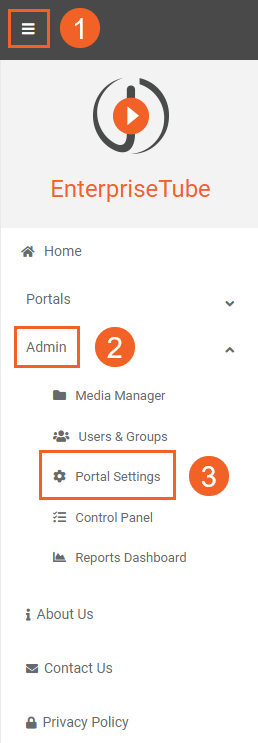
- Select the menu icon in the upper-left corner.
- Select Admin.
- Select Portal Settings.
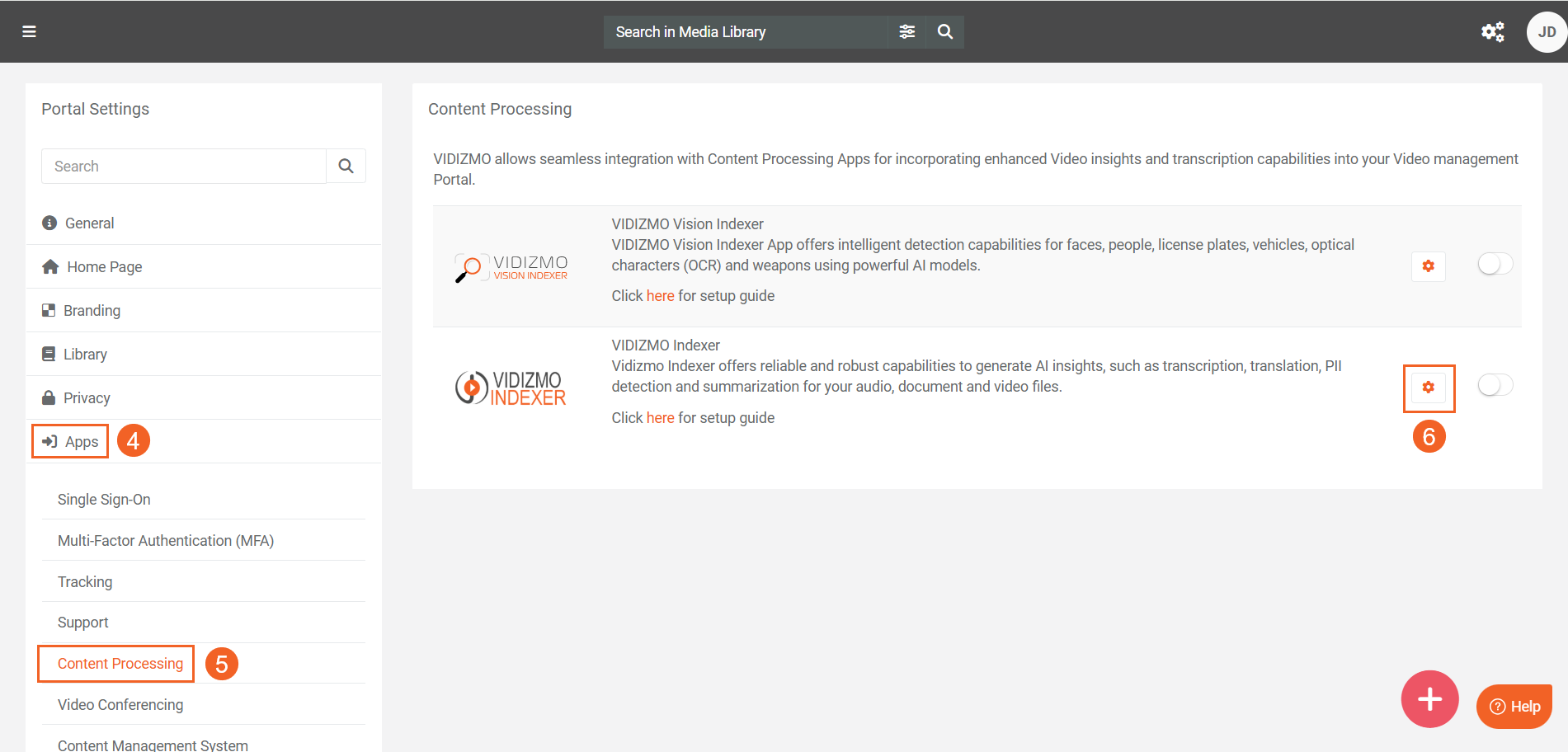
- In Portal Settings, select Apps.
- Select Content Processing to view available processing apps. Locate VIDIZMO Indexer.
- Select its settings button to open the configuration.
Configure VIDIZMO Indexer
-
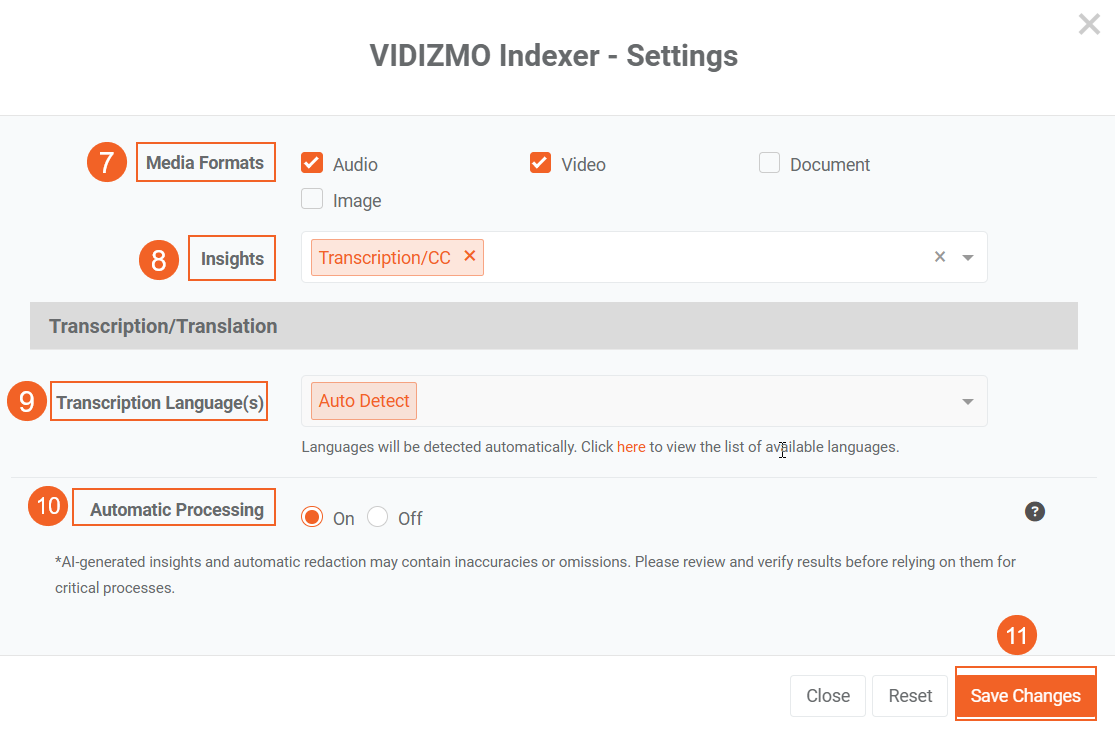
Choose the Media/Evidence formats you want to generate AI Insights for. Available insight options depend on the selected format(s).
-
Add transcription and closed caption (CC) insights to generate transcripts for audio and video content.
-
Choose how languages are detected for transcription. As of now, only Auto-detect is currently available that detects the language automatically.
For the list of supported languages for transcription, refer to Understanding Transcriptions via VIDIZMO Indexer.
-
Turn Automatic processing on or off to control whether VIDIZMO Indexer processes content automatically when it’s uploaded.
-
Select Save Changes to apply your configuration.
Note: Reset restores the default values.
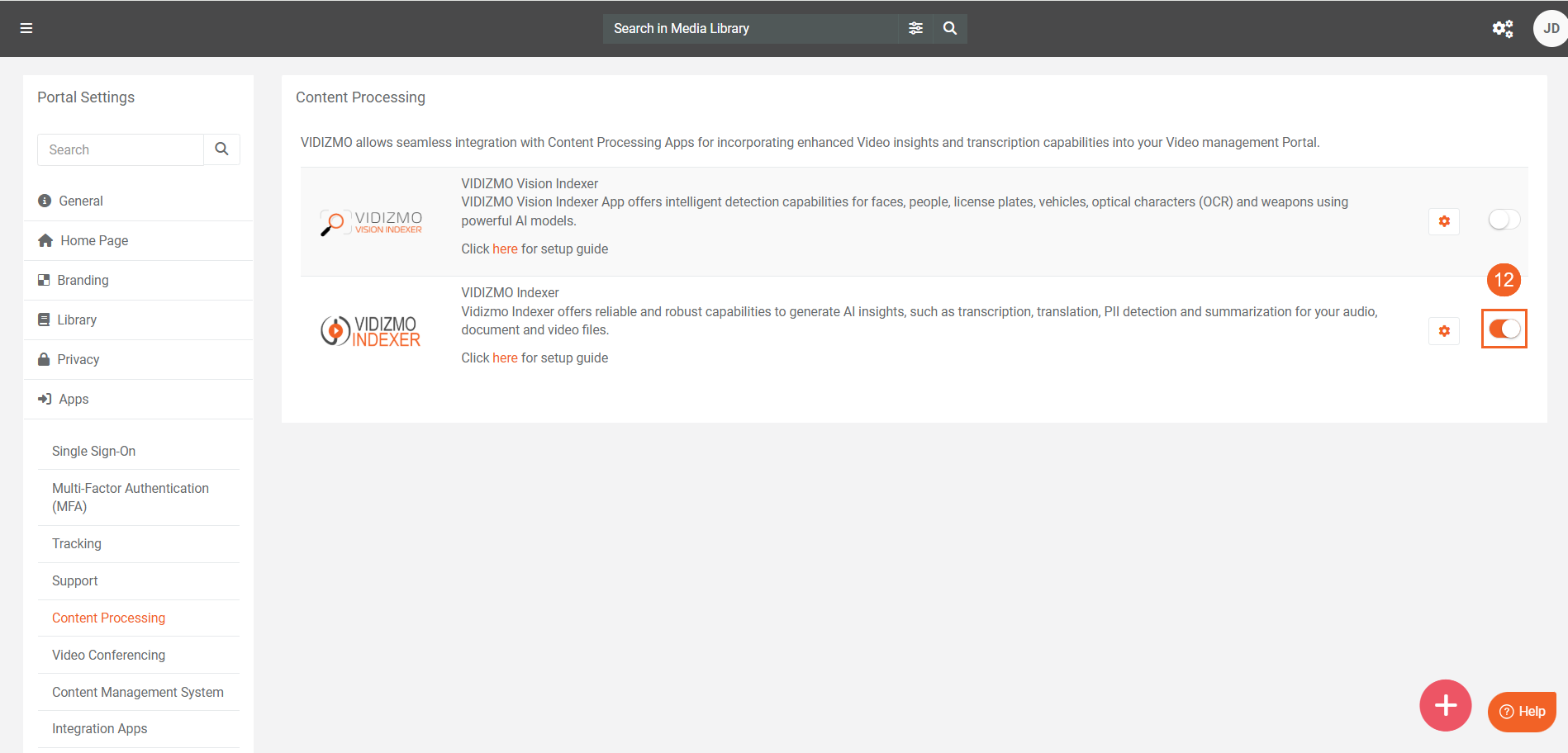
- Make sure the VIDIZMO Indexer app is enabled to generate outputs based on your settings. To learn how to run the process and view results, see How to Generate Transcriptions and Translations using VIDIZMO Indexer.